LANSA V13 SP2 and OpenJDK
| Date: | 29 January 2019 |
|---|---|
| Product/Release: | LANSA Integrator - V13 SP2 |
| Abstract: | Steps required to use OpenJDK with LANSA Integrator V13 SP2 |
| Submitted By: | LANSA Technical Support |
Background:
The instructions below to switch LANSA Integrator V13 SP2 from Java SE to
OpenJDK are provided as an option, due to Oracle Java SE compliance and End of Public
Updates for Oracle JDK 8, detailed here.
Steps to use OpenJDK with LANSA V13 SP2
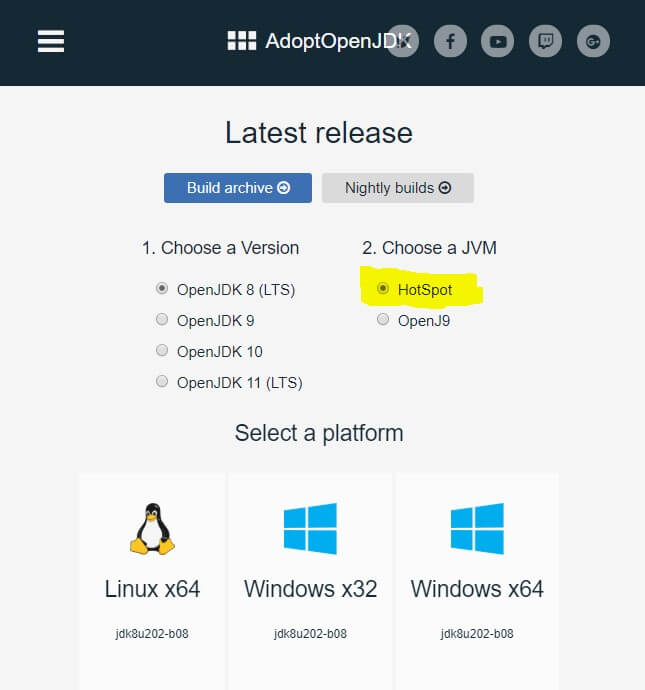
If OpenJDK is not already installed, it can be downloaded here (note the Hotspot version is pre-selected).
Install by unzipping into a folder path. This is referred to below
as <installed Java path>.
The java folder name path
will depend upon which OpenJDK Java version is being used.
64-bit Path is
generally C:\jdk8u172-b11
32-bit Path is generally C:\jdk8u192-b12 (a
32-bit O/S requires the 32-bit version.)
The steps to switch to OpenJDK are the same whether you have an existing
LANSA Integrator V13 SP2 installation or whether you are installing a new
LANSA Integrator V13 SP2. You must modify the following Integrator
shortcuts.
Note: to avoid issues in the ‘Start In’ related to long
path names and embedded spaces in the New Values below,
LANSA recommends using the short path name. One way to establish the short
path name for the shortcuts is to open the LANSALauncher.cfg file in the
Tools folder and copy the WorkDir path into the ‘Start In’
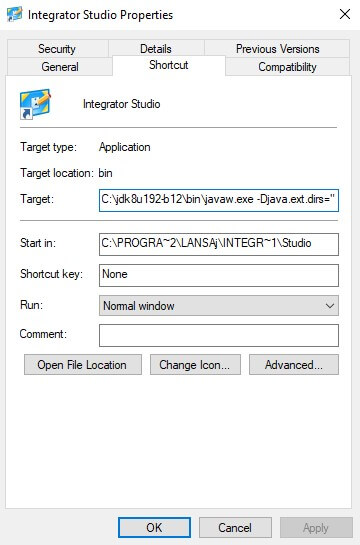
Integrator Studio
Existing values will be like the following:
Target
“<installed
LANSA Integrator path>\Tools\LANSALauncher.exe" /app=javaw.exe /id=Studio /lang=ENG
Start in
<installed LANSA Integrator path>\Tools
New values:
Target
"<installed Java path>\bin\javaw.exe"
-Djava.ext.dirs=".\lib\ext" -Djava.endorsed.dirs=".\lib\endorsed"
com.lansa.jsf.studio.JSFStudio
Start In
<installed LANSA
Integrator path>\Integrator\Studio
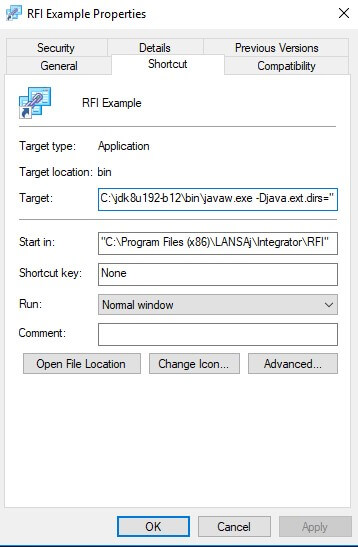
RFI
Existing values will be like the following:
Target
"<installed LANSA Integrator path>\Tools\LANSALauncher.exe"
/app=javaw.exe /id=RFI /lang=ENG
Start in
<installed LANSA
Integrator path>\Tools
New values:
Target:
"<installed Java path>\bin\javaw.exe"
-Djava.ext.dirs=".\lib\ext" com.acme.RFIExampleViewer
Start in
<installed LANSA Integrator path>\Integrator\RFI
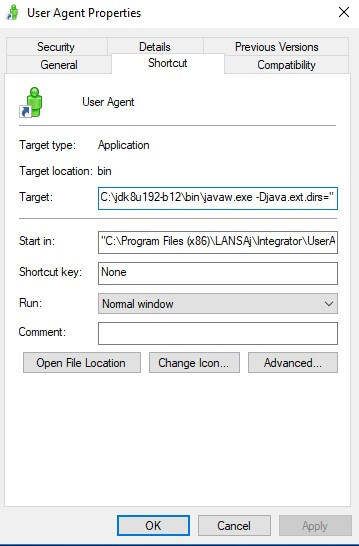
User Agent
Existing values will be like the following:
Target
"<installed LANSA Integrator path>\Tools\LANSALauncher.exe" /app=javaw.exe
/id=UserAgent /lang=ENG
Start in
<installed LANSA Integrator
path>\Tools
New values:
Target:
"<installed Java path>\bin\javaw.exe" arg=-Djava.ext.dirs=".\lib\ext"
-Djava.endorsed.dirs=".\lib\endorsed" com.lansa.jsf.useragent.JSFUserAgent
Start in
<installed LANSA Integrator path>\Integrator\UserAgent
JSM Server
The <installed LANSA
Integrator path>\Integrator\JSMAdmin\jsmmgrdta.txt file musst be updated.
Change
JVM=..\Java (or similar)
To new value:
JVM=<installed
Java path>\bin\java.exe